 Macaroom
System Data taking 100 GB or more? Here's why
When System Data is huge, it's almost never hundreds of small things. It's one to three big ones. Find those and the problem is usually solved in minutes.
The usual causes, biggest first
| Cause | Who gets it | Where to look |
|---|---|---|
| Developer tools: Xcode, simulators, device support | Anyone who has installed Xcode | ~/ |
| Docker or virtual machines | Developers, people running Windows or Linux in a VM | ~/ |
| Local AI models | People who tried Ollama, LM Studio or similar | ~/, ~/ |
| iPhone and iPad backups | Anyone who backs up a device to the Mac | ~/ |
| Messages, Mail and chat apps | Years of photos and videos in chats | ~/, ~/ |
| Package and download caches | Developers | ~/, ~/, ~/ |
| Time Machine local snapshots | Time Machine users whose backup disk was unplugged | Managed by macOS |
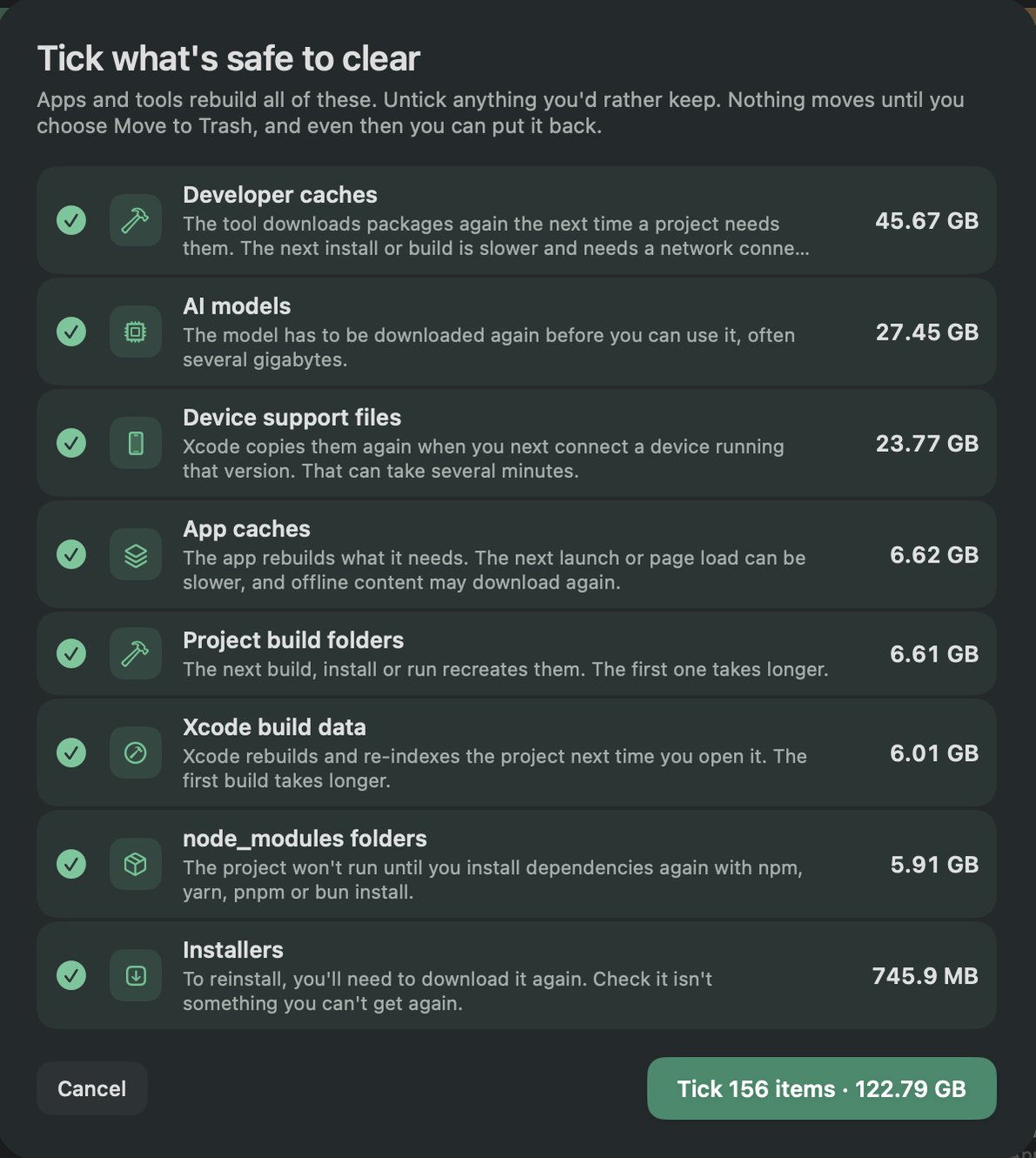
What it looked like on our Mac
On our Mac, a scan found over 120 GB that tools rebuild on their own. Most of it came from three things: developer caches, AI models and Xcode's device support files.
How to find yours
- In Finder, choose Go › Go to Folder… and enter
~/Library. - Choose View › Show View Options and turn on Calculate all sizes, then sort by Size.
- Open the biggest folder and repeat until you reach something you can name.
- Do the same for your home folder with hidden files shown (press ⌘⇧.) to catch
.npm,.cacheand.ollama.
Then use the right guide for what you found, or the step-by-step clearing guide.
When it's macOS itself
If none of your folders is big, the space is probably in places macOS manages: local Time Machine snapshots, files left from a recent update, or swap. Plug in your Time Machine disk and let a backup finish, then restart. macOS removes local snapshots on its own when it needs the space.
Questions people ask
Is 100 GB of System Data normal?
It's common, especially on Macs used for development or with years of iPhone backups and chat history. It isn't a fault. It means a few big items are worth checking.
Why did System Data jump overnight?
Usually a macOS update in progress, a new iPhone backup, or Time Machine keeping local snapshots while its backup disk was away. The update files and snapshots usually clear on their own.
Should I reinstall macOS to fix huge System Data?
Almost never. Finding and clearing the few big items gets the same space back without wiping your Mac.
Related guides
- How to clear System Data on Mac, step by step
- Mac storage full? Where the space really went
- What happened to Other storage on Mac?
See it on your own Mac
Macaroom scans your Mac, names what each chunk of storage is, and marks what's safe to clear. Anything you remove goes to the Trash, so you can put it back.
Get Macaroom